Create Dynamic QR Codes with Custom Domain
Learn how to configure and use a custom domain when generating dynamic QR codes with ZodQR. Build brand recognition and create more professional QR codes for your business.
 Huong PhamUpdated: 2026-10-23
Using a custom domain for your dynamic QR codes helps build brand recognition, increase trust, and create a more professional experience for your audience. Instead of using a generic URL like p.zodqr.com, you can use your own branded domain, such as your-brand.com, or qr.your-brand.com.
A custom domain can also help prevent scanning issues on networks that block unfamiliar or shared domains, such as those in some schools and offices.
In this guide, you'll learn how to configure a custom domain for your ZodQR workspace and use it when generating dynamic QR codes.
Add a Domain to Your ZodQR Workspace
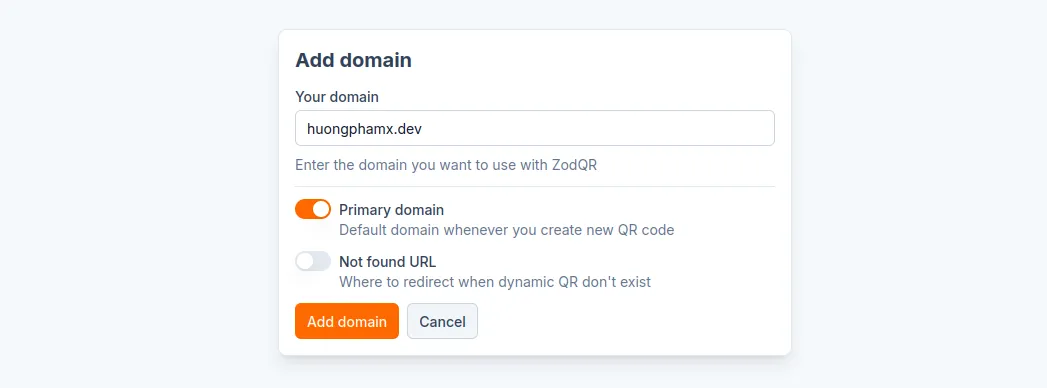
- From the Dashboard, navigate to the Domains page.
- Click Add Domain.
- Configure your domain:
- Enter the domain you've configured in your DNS settings.
- Optionally, set it as your primary domain so that it will be used by default when you generate new dynamic QR codes.
- Set a custom 404 redirect URL so that visitors are redirected to your chosen link instead of seeing ZodQR's default 404 page.
- Once you've finished configuring the settings, click Add Domain.
Configure DNS Records
To connect your domain to ZodQR, you need to add either an A record or a CNAME record to your DNS settings. You do not need both records for the same hostname.
Choose the configuration that matches your domain type and DNS provider.
For an Apex Domain
An apex domain (also called a root domain) is the main domain of a website, such as your-brand.com, without a subdomain like www.
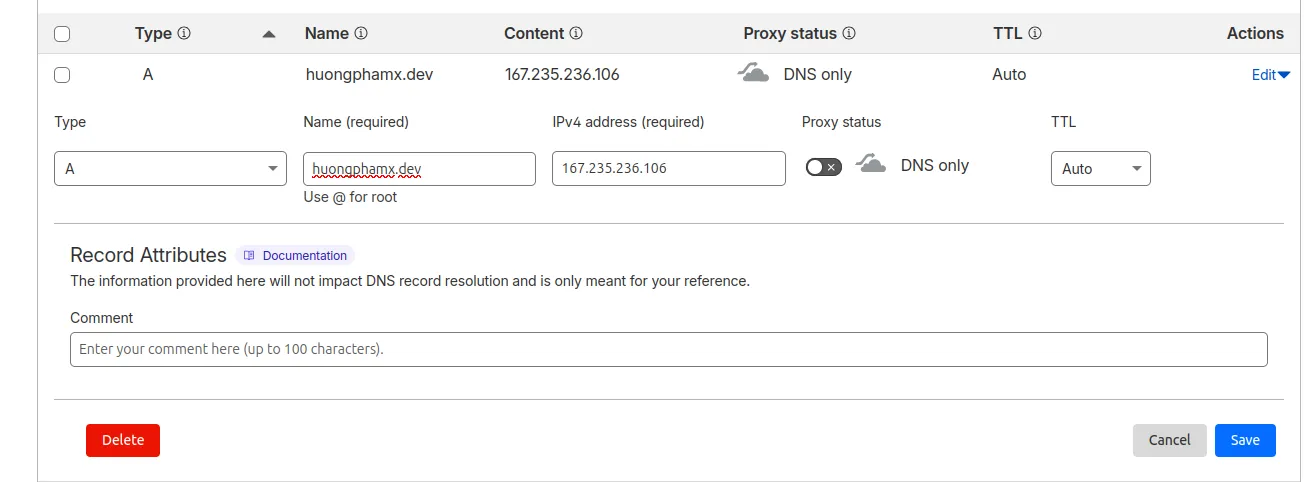
To connect your-brand.com to ZodQR, add the following A record:
| Type | Name (or Host) | Value | TTL |
|---|---|---|---|
| A | @ (or leave blank) | 167.235.236.106 | 86400 |
Example of DNS configuration for an apex domain in Cloudflare:
For a Subdomain
Suppose you want to use qr.your-brand.com with ZodQR. You can connect it using either an A record or a CNAME record.
Option 1: Use an A record
| Type | Name (or Host) | Value | TTL |
|---|---|---|---|
| A | qr | 167.235.236.106 | 86400 |
Option 2: Use a CNAME record
| Type | Name (or Host) | Value | TTL |
|---|---|---|---|
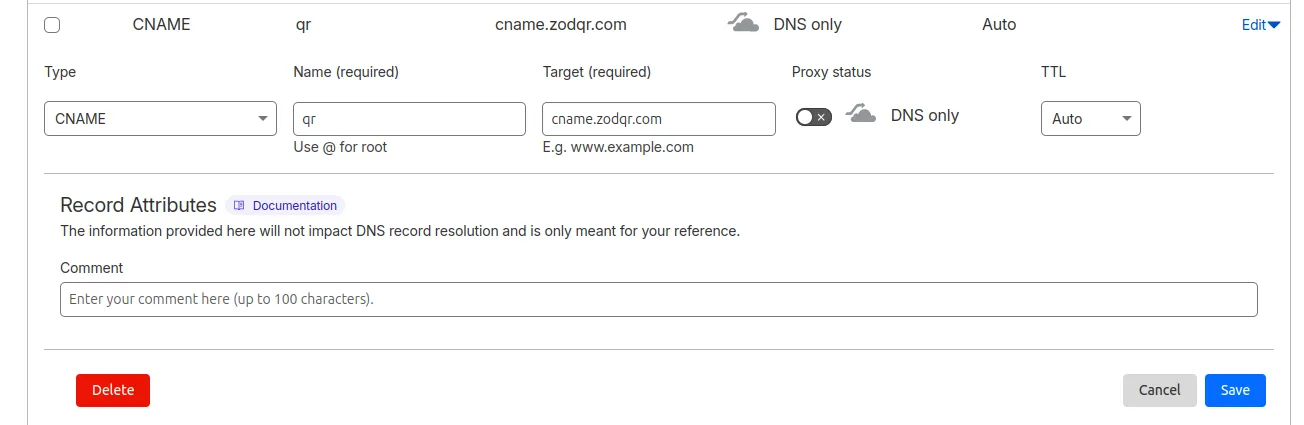
| CNAME | qr | cname.zodqr.com | 86400 |
Choose one of these options. You do not need to configure both records for qr.example.com.
Example of DNS configuration for a subdomain in Cloudflare:
Note: DNS changes may take some time to propagate. If your domain does not work immediately after configuration, wait a while and check again.
Use a Custom Domain When Generating QR Codes
Once your custom domain is configured and added to your ZodQR workspace, you can use it when generating dynamic QR codes.
- Generate a dynamic QR code as usual.
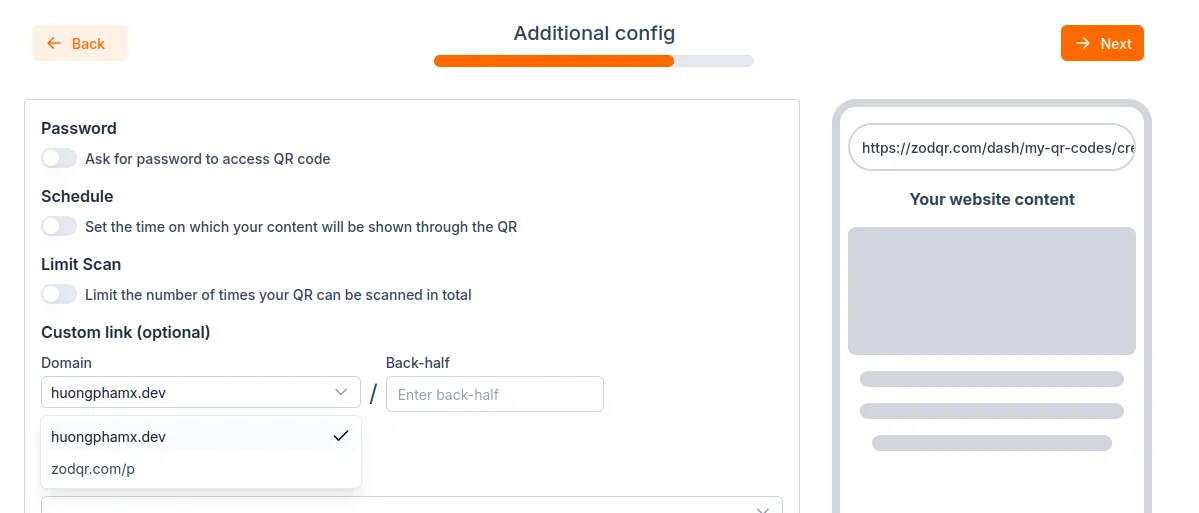
- During the configuration step, find the Custom URL section and select your custom domain from the dropdown list. You can also specify a custom back-half to make the URL more readable. If you leave this field blank, ZodQR will generate a random back-half for you.
- Continue customizing the appearance of your QR code.
- Save your QR code.
Your dynamic QR code will now use your custom domain, giving your audience a more recognizable and professional URL.